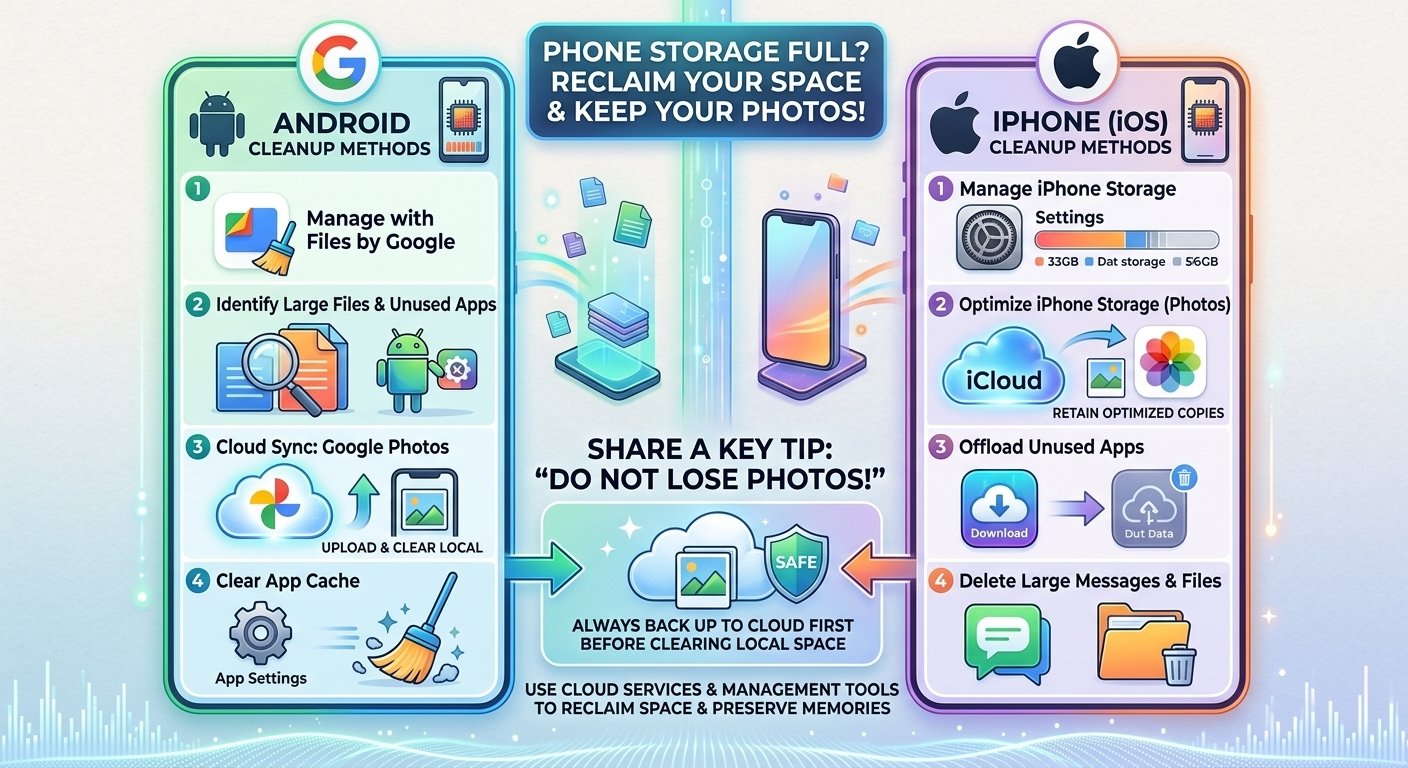
The dreaded “Storage Almost Full” message always seems to appear at the wrong moment, like right when you are trying to take a photo. The good news is that you can clear a lot of space without deleting the memories you care about. Here is how to do it on both Android and iPhone.
1. Find out what is using your storage
Before deleting anything, look at what is taking up room. On iPhone, go to Settings, then General, then iPhone Storage. On Android, open Settings, then Storage. You will see a breakdown by category, so you can attack the biggest problem first. Very often it is photos, videos, or a few huge apps.
2. Back up photos to the cloud, then remove local copies
This is the best way to free space without losing anything. Google Photos, iCloud Photos, and other cloud services store your pictures online. Once they are safely backed up, you can remove the copies from your phone.
On iPhone, turn on iCloud Photos and choose Optimize iPhone Storage, so full-size originals live in the cloud and smaller versions stay on your phone. On Android, use Google Photos and tap Free Up Space after the backup completes. Always confirm the backup is finished before deleting local files.
3. Delete large videos first
Videos take far more room than photos. A few minutes of 4K video can use gigabytes. Sort your videos by size, keep the ones you love, and move the rest to the cloud or a computer.
4. Clean up messaging app media
WhatsApp, Telegram, and similar apps quietly save every photo, video, and voice note you receive. Open the app’s storage settings and look for a manage storage option. You can clear large files, forwarded videos, and old group media without deleting your conversations.
5. Uninstall or offload apps you rarely use
Apps and their data can be huge, especially games and social media. Uninstall what you no longer need. On iPhone, Offload Unused Apps removes the app but keeps your documents and data, so you can reinstall later without losing progress.
6. Clear app cache
Cache files help apps load faster but can pile up into gigabytes. On Android, you can clear cache app by app in Settings, then Apps. Start with your browser, social media, and streaming apps. iPhone does not have a system-wide cache cleaner, but many apps include a clear cache option in their own settings, and Safari has a clear history and website data option.
7. Remove downloaded music, podcasts, and offline videos
Streaming apps let you download content for offline use, and those downloads add up. Check Spotify, YouTube, Netflix, and podcast apps, and delete old downloads you have already finished.
8. Empty the recently deleted folders
Deleted photos do not disappear instantly. On iPhone, they stay in Recently Deleted for 30 days. On Android, they may stay in the trash or recycle bin of your gallery or Google Photos. If you are sure you do not need them, empty these folders to reclaim space immediately.
9. Delete old downloads and files
Open your Files app and check the Downloads folder. PDFs, installers, and forgotten videos tend to pile up there. Google’s Files app on Android also suggests junk files, duplicates, and large items to remove.
10. Use a microSD card (if your phone supports it)
Some Android phones have a microSD card slot. You can move photos, videos, and music there. iPhones and many newer Android phones do not support this, so check your model first.
11. Avoid keeping duplicate photos
Burst shots, screenshots, and edited copies create duplicates. On iPhone, the Photos app has a Duplicates album under Utilities. On Android, Google Photos and Files by Google can help you find similar photos.
Quick storage habits that prevent the problem
- Turn on automatic cloud backup for photos
- Review your storage once a month
- Avoid saving videos from messaging apps automatically
- Record video in 1080p instead of 4K when you do not need the extra detail
- Keep at least 10% of your storage free so your phone runs smoothly
Final thoughts
You do not have to choose between your memories and a working phone. With cloud backup and a few cleanup habits, you can reclaim gigabytes of space and keep everything that matters.