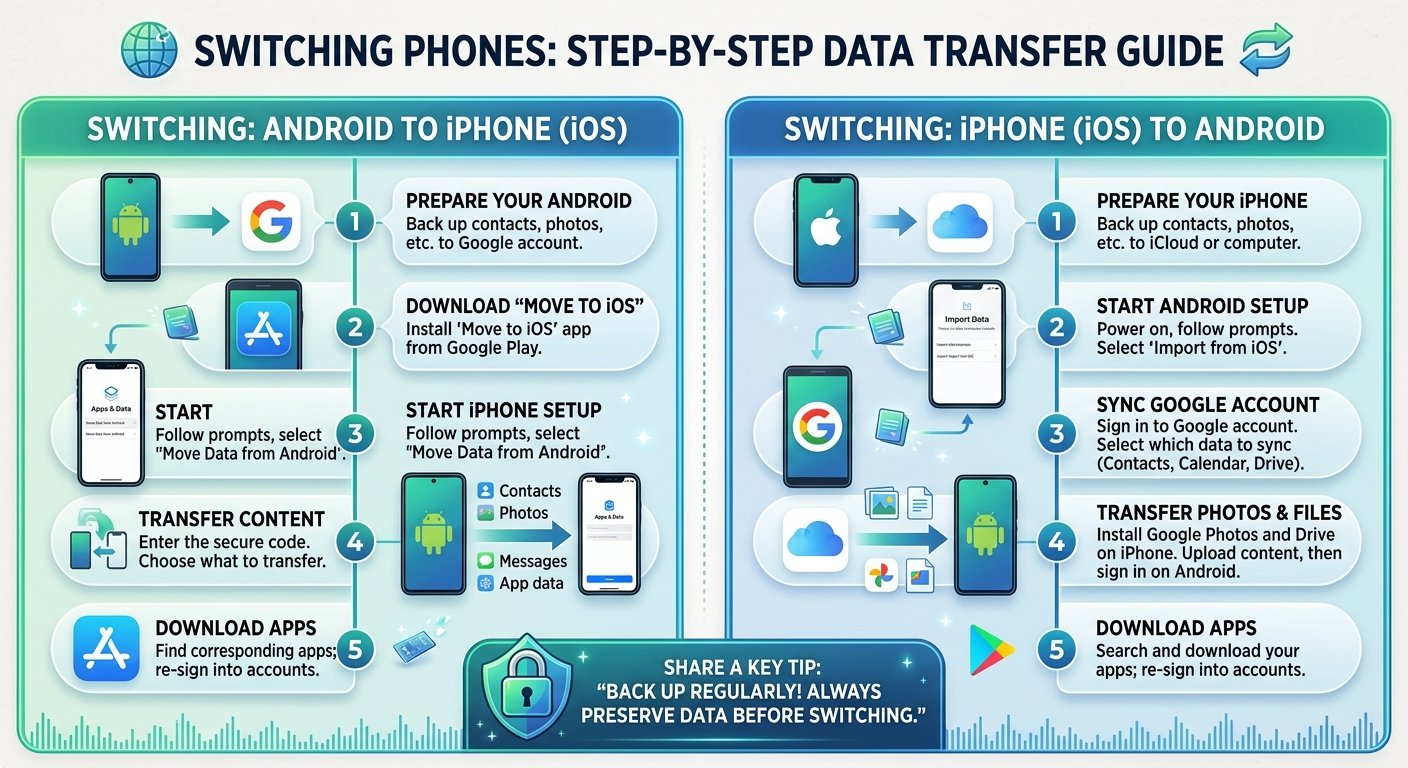
Switching between Android and iPhone used to be a headache, but today both companies provide tools that make the move much easier. With a little preparation, you can bring over your contacts, photos, messages, and more. Here is a clear, step-by-step guide for both directions.
Before you start: preparation checklist
- Charge both phones, or keep them plugged in during the transfer
- Connect both phones to a stable Wi-Fi network
- Make sure you have enough free storage on the new phone for your data
- Back up your old phone first, just in case
- Update the software on both devices
- Note your important accounts and passwords, such as Google, Apple ID, and banking apps
Part 1: Android to iPhone
Step 1: Start setting up your new iPhone. Turn on the iPhone and follow the setup screens until you reach the Apps & Data screen. Choose Move Data from Android. If you have already finished setup, you may need to erase the iPhone and start again to use this option.
Step 2: Install Move to iOS on your Android phone. Download the official Move to iOS app from the Google Play Store, open it, and follow the prompts.
Step 3: Enter the code. The iPhone will show a numeric code. Type it into your Android phone to create a secure connection between the two devices.
Step 4: Choose what to transfer. Select the content you want to move. Move to iOS can transfer contacts, message history, camera photos and videos, mail accounts, and calendars. It can also move your WhatsApp account and chat history, following the app’s instructions.
Step 5: Wait for the transfer to finish. Keep both phones close together and do not use them until the progress bar finishes on the iPhone, even if your Android says it is done. Large libraries can take a while.
Step 6: Finish setup and re-download apps. Set up the rest of your iPhone. Free apps that exist on both platforms are often suggested for download from the App Store, but paid apps must be purchased again, and some app data may need to be restored from within the app.
Part 2: iPhone to Android
Step 1: Turn off iMessage before you switch. This is very important. On your iPhone, go to Settings, then Messages, and turn off iMessage. If you forget, text messages from other iPhone users may not reach your new Android phone. If you no longer have the iPhone, Apple provides an online tool to deregister iMessage.
Step 2: Use the transfer tool on your new phone. Most Android phones offer a setup option to copy data from an iPhone. Google Pixel and many other phones use Google’s transfer feature, and Samsung phones have Smart Switch. During setup, choose to copy data from an iPhone and follow the screen instructions.
Step 3: Connect with a cable or wirelessly. A cable connection is usually faster and more reliable. Plug the iPhone into the Android phone using a USB cable and adapter if needed, and tap Trust on the iPhone when asked.
Step 4: Select your data. You can usually choose contacts, calendars, photos, videos, and some messages. Apps cannot be transferred directly, so you will download them again from Google Play.
Step 5: Move your photos using the cloud if needed. If you prefer, upload your photos to Google Photos from the iPhone, then sign into the same account on the Android phone. You can also use Apple’s data and privacy portal to request a copy of your iCloud photos to transfer to Google Photos.
How to transfer specific things
Contacts. The easiest way is to sync them to a Google or iCloud account that you can sign into on the new phone. You can also export them as a file and import them.
Photos and videos. Cloud services like Google Photos work on both Android and iPhone, which makes moving between systems simple. For large libraries, a computer and a cable are another reliable method.
Messages. Message history transfers can be limited between platforms. Move to iOS supports it in one direction, while going to Android may keep only some messages depending on the tool you use.
WhatsApp. WhatsApp offers official methods for moving chats between Android and iPhone, but they require specific steps and compatible versions, so follow the app’s own guide before you wipe the old phone.
Music, passwords, and files. Streaming services restore with your account. Use a password manager to move your logins, and use cloud storage or a computer to move documents.
What cannot be transferred
Paid apps and in-app purchases do not move between platforms, and you will need to buy or log in again. Some apps keep your data only on the old device, so check them before wiping it. Health data, certain game progress, and some app settings may need to be restored from within each app.
Before you erase the old phone
Check that your contacts, photos, and messages all arrived. Make sure you can log into your key accounts and that two-factor authentication codes work on the new device. Keep the old phone for a week or two before wiping it, so that nothing gets lost.
Final thoughts
Switching platforms feels big, but with the official tools and a bit of preparation, it takes less than an hour for most people. Back up first, move your data, double-check everything, and enjoy your new phone.